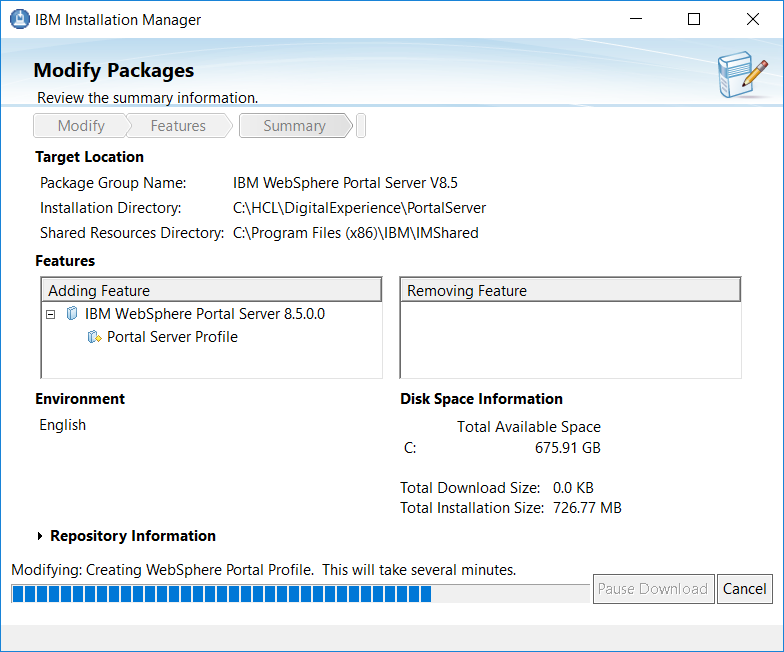
While installing HCL Portal Server 8.5.0.0

Error during "post-install configure" phase:
<entry num='902' time='1598469549044' elapsed='23:42:14.77' level='ERROR' uid='CRIMA1217E' thread='Worker-24'>
<logger>com.ibm.cic.agent.core.antInstallAdapter.ant.AntInstallOperation</logger>
<method>doPerform</method>
<message>
<key>A problem occurred during the execution of the {0} file.
ERROR: Error executing the work flow. Step 'Create WebSphere Portal Profile' FAILED!. Check the logs for additional error messages. [C:\HCL\DigitalExperience\PortalServer\installer\wp.config\wizard\repository\repository_actions.xml:622]
A package has an issue that cannot be resolved by Installation Manager.
Identify the package that has the issue by looking at the installation history. In Installation Manager, click File > Installation History. In console mode, enter S: View Installation History. Contact IBM customer support.</key>
<arg>C:\HCL\DigitalExperience\PortalServer\installer\wp.config\wizard\repository\repository_actions.xml</arg>
</message>
</entry>
The installer emptied the wp.config directory, so I can't inspect repository_actions.xml. I find no other relevant information in the log. The package was not installed.
Should I use another method to create the HCL Portal Profile? How would I know that other steps of the "post-install configure" phase weren't also left unaccomplished? Anyway, the "IBM WebSphere Portal Server 8.5.0.0" package isn't installed, so steps before "post-install configure" must have been rolled back. Repeating the package installation is likely to have the same result as the first time, right? It would be helpful to know what went wrong. All I know is "Step 'Create WebSphere Portal Profile' FAILED!" Why did that step fail?
Hello Alan,
there are no more details in the IIM log files? I know they are cumbersome to read but they might have more details. I know that this kind of problem is hard to analyze as IIM is cleanup up the failed step.
You could also tail the ConfigTrace.log file (make sure you have sufficient screen buffer lines, or you use a tool like baretail (as you are on Windows)) so that you can check for any errors there.
Besides checking the IIM log files - I had a similar problem in the past and finally that we because of a host name problem. I.e. the name used for the portal could be be resolved via the DNS and/or hosts file. I furthermore assume that you've checked the all the pre-requisites (free disk space etc.) - right?
Hope that helps .. Hermann
Hermann,
No, I did not find additional relevant details in the IIM log file.
I have been diligent about prerequisites, including disk space.
With reference to Windows: Installing with the graphical user interface procedure Step 1, "Start all servers and applications that require a port number to avoid port conflicts when you install HCL Digital Experience," I am now considering that to be bad advice. Let's assume that the writer intended, "Stop all servers and applications..." I need not consume ports to persuade IIM to assign non-conflicting ports for HCL Portal Server.
My plan is to attempt again installing the so-called "IBM WebSphere Portal Server 8.5.0.0" package, but this time not select the Portal Server Profile feature. The justification for this plan is that IIM rolled back the package installation and that the Portal Server Profile feature proved problematic (i.e. failure came at the "post-install configure" phase). Once I have successfully installed the base package, I'll attempt IIM modify to add the feature, and at that time I'll tail the ConfigTrace.log file, as you suggest.
Alan
IIM requires me to at least empty the PortalServer directory, which I'll do, but the existence of the wp_profile directory may be a problem later.
My third attempt to install the HCL Portal Server 8.5.0.0 package was successful. (The second attempt failed, claiming that cw_profile\bin\EARExpander.bat was in use by another process.) The Portal Server Profile feature is not installed.
There is no ConfigTrace.log. Do you expect it to be created during IIM modify to add the Portal Server Profile feature? If so, where?
Please review these links for best practice install steps....
https://www.youtube.com/watch?v=RUjDkVAR_zM
https://support.hcl-software.com/csm?id=kb_article&sysparm_article=KB0079596
That's 9.5. I'm following the instructions for 8.5 because I'm installing 8.5.
Gotcha....try following the first few sections of the Portal 8.5 Cluster Guide....
https://support.hcltechsw.com/csm?id=kb_article&sysparm_article=KB0076471
Hello Alan,
I would not install without a profile. Creating the profile afterwards is kinda cumbersome (if possible at all). Hence I'm always installing with creating a profile on the first node.
Second - make sure that you do not install the CF together with the base portal. That won't work! Install the Portal server with GA code only and have the profile created. Then upgrade to the desired CF only!
So I'd give the following a try:
- Uninstall everything related to Portal via IIM i.e. WAS, WP, Java, profiles etc. (just leave IIM, and possible other products not related to portal, installed)
- Remove up all directories (WAS_HOME, PORTAL_HOME and PROFILE_HOME). Especially the PROFILE_HOME is important as a removal of the profile leaves logs etc. behind and this prevents the creation of a profil in the same direcory (the PROFILE_HOME must not exist or it must be empty!)
- Reboot the Windows box
- Verify the IIM repositories you've configured. Make sure that only the DX GA repositories and required iFixes are configured! NO CFs!! Afaik profile creation only works if there are no CFs applied.
- Make sure that all prerequ's are in place
- Make sure that the intended hostname can be resolved and points to a local interface
- Start the installation again with the profile creation
- Good luck ;)
Hope that helps ... Hermann
Hermann,
Creating the profile afterwards was successful and a server named “WebSphere_Portal” is running, associated with the ../wp_profile1 profile (relative to the HCL Portal Server installation directory). My first installation attempt left ../wp_profile in place, which troubled me, but
https://help.hcltechsw.com/digital-experience/8.5/config/cw_remove_profile.html
Remove an HCL Portal profile
was unsuccessful. The Configuration Wizard invokes
AppServer_ND_8.5.5.13\bin\manageprofiles.bat" -delete...
The command made no progress. At that time, I concluded that because there is no wp_profile directory in
AppServer_ND_8.5.5.13\profiles\
WAS does not regard wp_profile as a profile, so I killed manageprofiles after a long wait. I decided to ignore (rather than delete) the wp_profile directory relative to the HCL Portal Server installation directory and proceed with adding the Portal Server Profile feature using IIM modify. Expecting the installer to complain about the existence of wp_profile, I was happy to discover that the installer chose instead to create the wp_profile1 sibling directory.
Alan
How long is "several minutes"?
The modification completed successfully after 1 hour and 26 minutes.
Sorry, could not answer before! Well, what several minutes mean depends a lot on the power of the system it is running :)
Does this mean that the profile was created successfully now?
Cool .... congratulations! What did you do to get it working?
The significant differences between my failed attempt to create wp_profile and my successful attempt to create wp_profile1 seem to be:
Hi Alan,
One of the tricks we use to investigate installation failures like this is to pause the IIM from rolling back the files automatically during an error. Here is the procedure to configure IIM for this.
1. Create a log.properties file in this location:
C:\ProgramData\IBM\InstallationManager\logs
ProgramData may be hidden. You will need to set Windows to show all hidden folders.
2. Add the following text to the file:
InstallOperation=DEBUG
InstallOperation/pause.on_error=true
Director=DEBUG
Engine=DEBUG
3. Save and close the file
4. Restart IM from the following location:
<Installation Manager root>/eclipse/IBMIMc
Pay close attention to the executable file. There is a 'c' at the end of IBMIMc. It refers to the console mode and just means that a console will open up in the background to show the logging. This will also pause IIM on the failure and allow you to review the logs. The command window in the background will prompt you to hit Enter to unpause the installation (this will cause IIM to proceed with the rollback).
For the first error that you reported, it's possible that the manageprofiles command failed to create the wp_profile. I would check the logs here:
<AppServer_root>/logs/manageprofiles
Other logs that we typically check are the SystemOut and ConfigTrace logs.
<wp_profile_root>/logs/WebSphere_Portal/SystemOut.log
<wp_profile_root>/ConfigEngine/log/ConfigTrace.log
I have not seen other users install the WAS / Portal binaries and add the profile later as you described. Though, in theory, it should work. Use the Modify feature of IIM to add the profile to the package. I think there is also a ConfigWizard workflow that will create the default profile. It is only available on the base Portal code (i.e. no CF applied). I don't have a lab machine at the moment to check, but you can access the ConfigWizard to verify.
Accessing the Configuration Wizard
https://help.hcl-software.com/digital-experience/8.5/config/cw_run.html
David,
<AppServer_root>/logs/manageprofiles/wp_profile_create.log does indeed contain an entry from 2020-08-26:
java.io.FileNotFoundException: C:\HCL\DigitalExperience\wp_profile\bin\EARExpander.bat (The process cannot access the file because it is being used by another process.)
Interestingly, this was the same error I would see on 2020-08-31 with the creation of cw_profile. But unlike wp_profile, with cw_profile the installer led me to the log file.
Regarding
<wp_profile_root>/logs/WebSphere_Portal/SystemOut.log
<wp_profile_root>/ConfigEngine/log/ConfigTrace.log
wp_profile/logs/
is empty.
wp_profile1/logs/
is populated.
wp_profile/ConfigEngine/
doesn't exist.
wp_profile1/ConfigEngine/
does exist.
You are correct that the base HCL Portal Server Configuration Wizard has

Alan
"The process cannot access the file because it is being used by another process."
This message could occur if there is some software running on the OS that is scanning newly created files. Typically it is an anti-virus or file indexing software (like Google Desktop). In these cases, we have seen users work around the issue by excluding the WebSphere file structure from being scanned, or temporarily disabling the software for the installation.