For question 1) I think you are wanting to dynamically change the properties of a widget in a row of a component's segment.
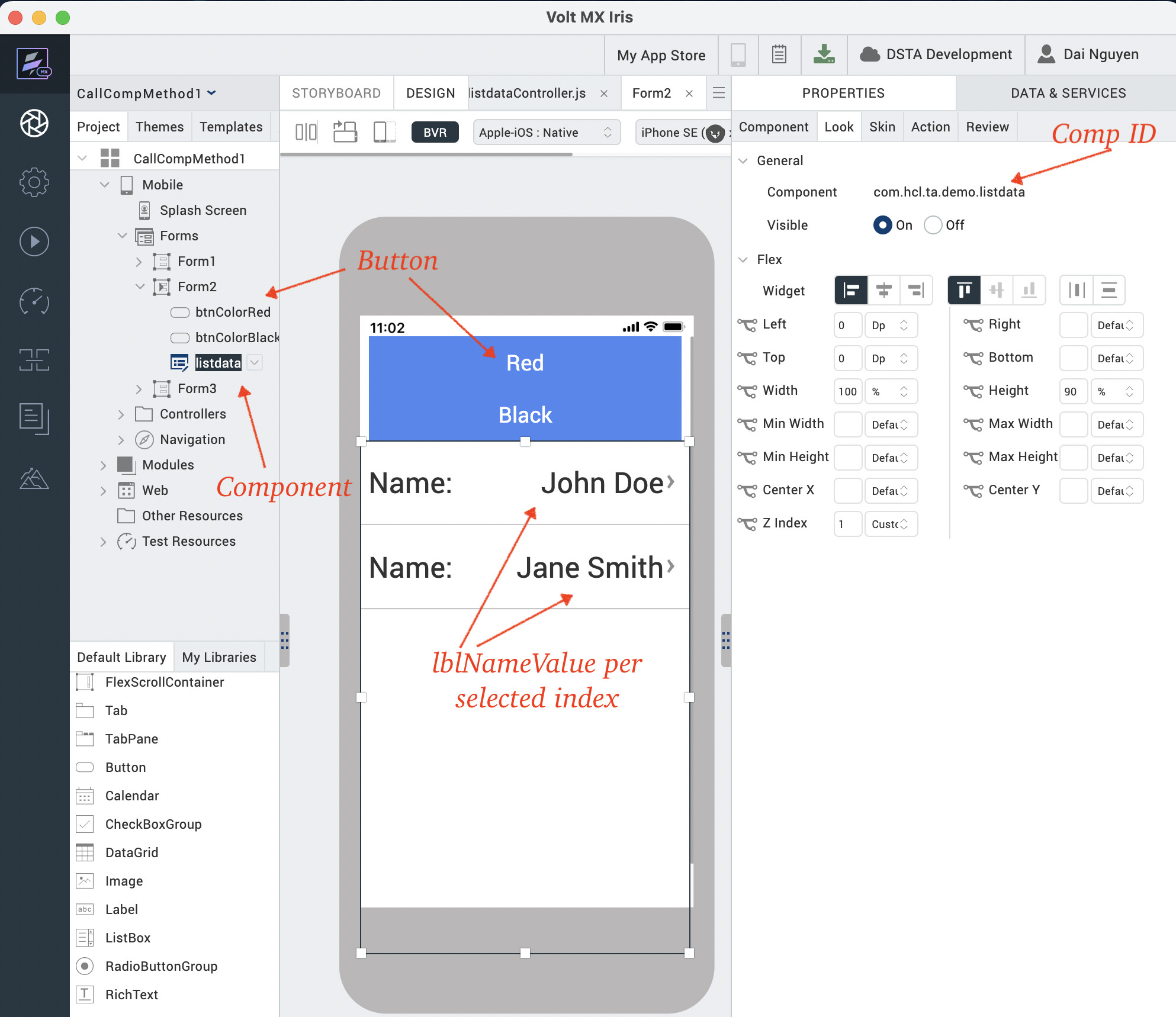
If you want to dynamically change a widget skin as an example, see below. The example will show you how a form can cause the font color of widget, in a row of a component's segment to be changed, via changing the widget's skin:
The way to achieve that is to first, in the Templates -> Segments area, name the skin that is applied to your segment-template label widget, e.g. sknCompSegNormal (for normal use). Secondly, duplicate that skin and change the font color to red and name it sknCompSegRed, as an example.
Now, expose the component-with-contract various properties and methods for its form to access/invoke:
- Use the component -> Manage Properties to expose your "segment" -> "data" Widget Property. For example, my segment is named segDataMain in the component, but its Widget Property "data" is named "dataSeg".
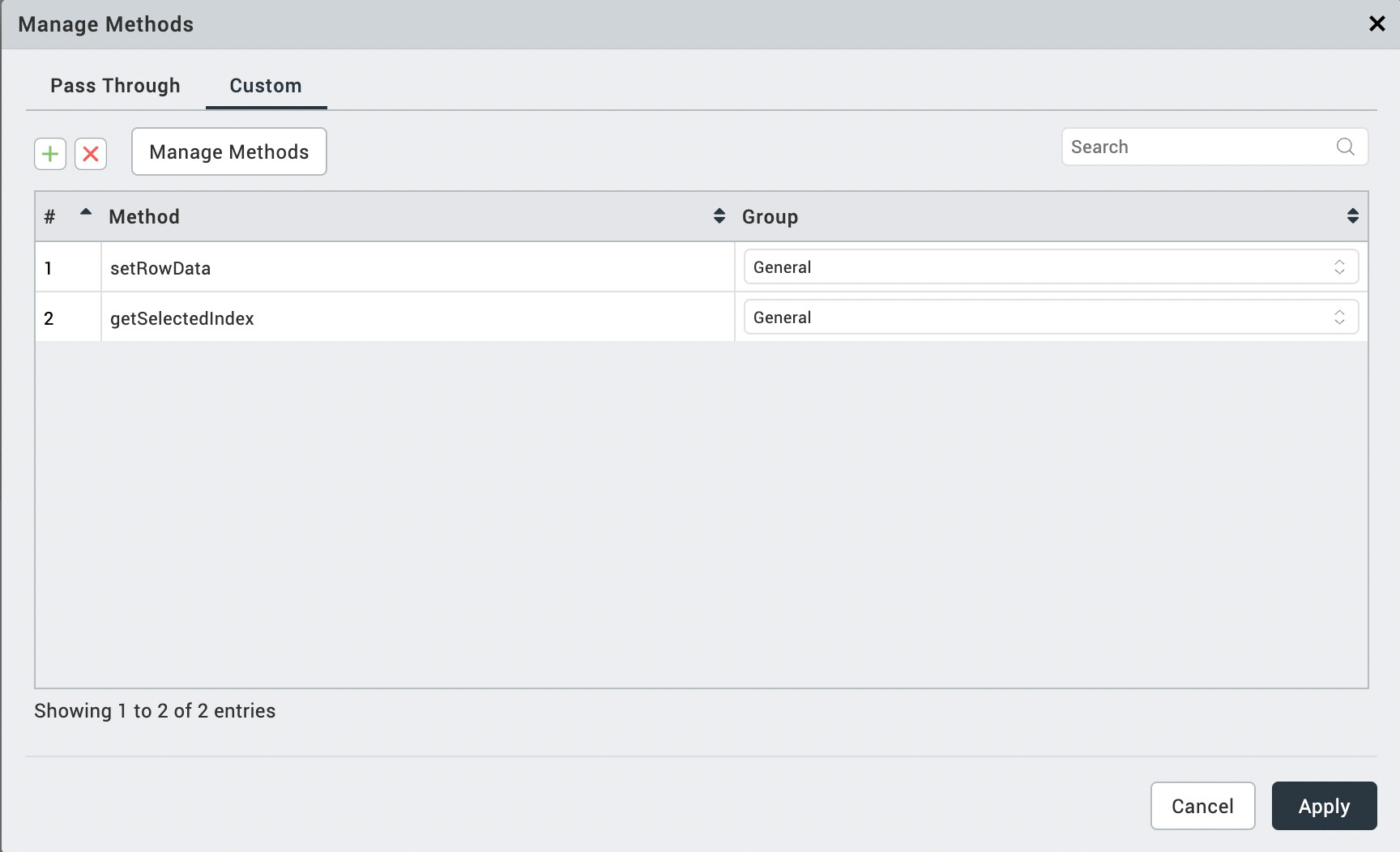
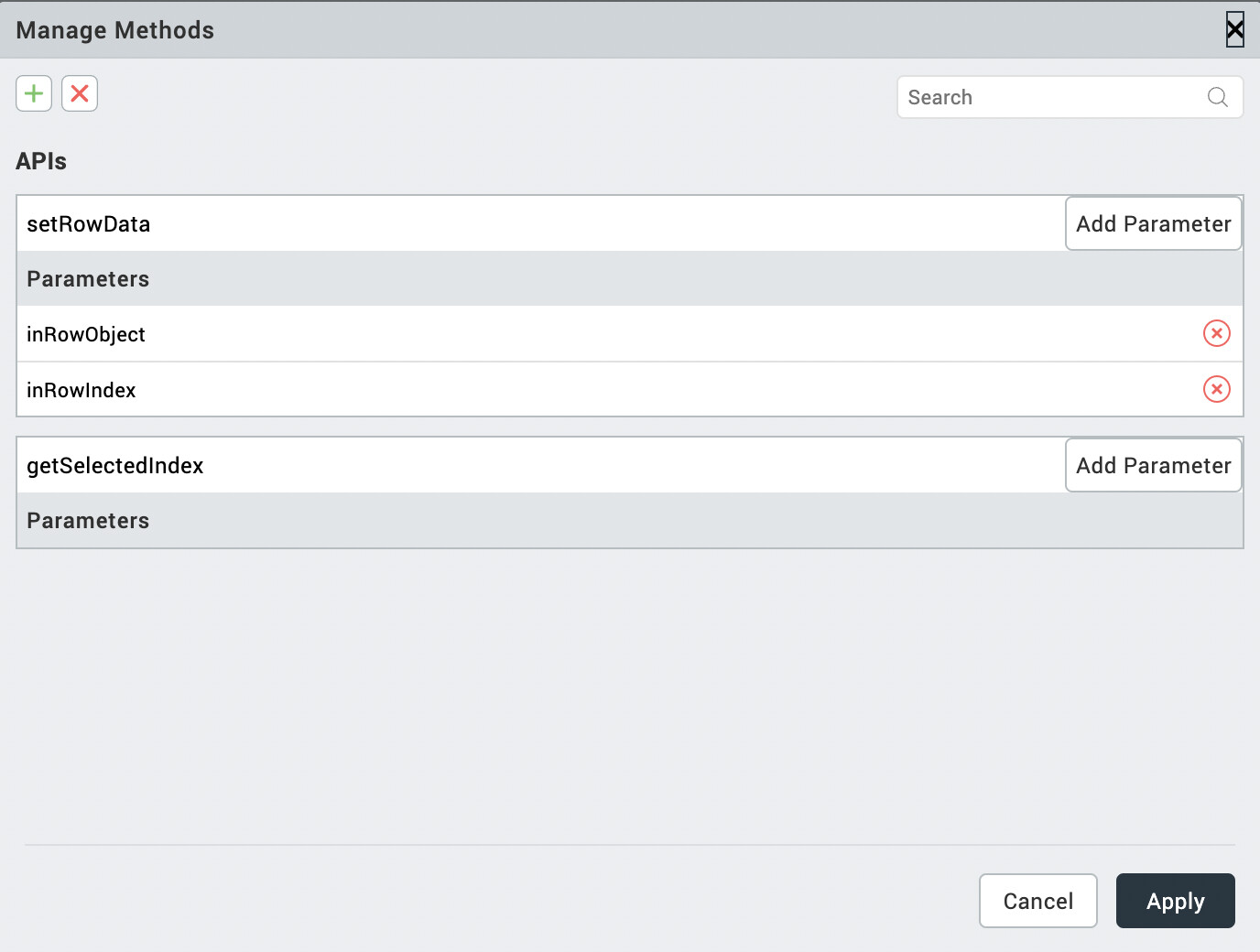
- Expose the 2 custom Javascript methods in Templates -> Components -> your_component -> Properties -> Action -> Manage Methods -> Custom: setRowData and getSelectedIndex.
Below are the 2 methods to be defined in your component -> Modules -> [component ... controller.js]
define(function() {
return {
constructor: function(baseConfig, layoutConfig, pspConfig) {
},
//Logic for getters/setters of custom properties
initGettersSetters: function() {
},
alertMeNow : function ()
{
alert("Segment component is here ...");
},
setRowData : function (inRowObject, inRowIndex)
{
this.view.segDataMain.setDataAt(inRowObject, inRowIndex);
},
getSelectedIndex : function()
{
return this.view.segDataMain.selectedRowIndex;
}
};
}
);
In my Iris project form, I have a button, btnColorRed, such that when it is clicked, it changes the font color of a segment-component label widget by changing the skin. It is required that the user clicks on a row in that segment-component to select a row first, before clicking btnColorRed!
4. btnColorRed calls the following code in a low-code action-snippet, for the onClick event, to change the skin of segment-label lblNamevalue , to sknCompSegRed:
// get the segment-component selected row after user clicks on 1 row.
let indexTmp = this.view.listdata.getSelectedIndex()[1];
let tmpSegData = this.view.listdata.dataSeg; // get segment object!
let tmpValue = this.view.listdata.dataSeg[indexTmp].lblNamevalue.text;
if (!tmpValue || tmpValue.length < 1)
{
tmpValue = this.view.listdata.dataSeg[indexTmp].lblNamevalue;
}
if (!tmpValue || tmpValue.length < 1)
{
return false; // label has no text, not shown.
}
tmpSegData[indexTmp].lblNamevalue = {text: tmpValue, skin:'sknCompSegRed'};
this.view.listdata.dataSeg = tmpSegData;
return true;
Hope the above is clear and will help!