If you want to search over a subset of content - e.g. content in a site area or site area hierarchy the WCM search component can be pretty helpful.
We will go over all the steps required to create a very simple WCM search component:
a) Ensure that a search service is currently configured. Create a new search collection and inside the collection create a new content source.
In the content source choose a URL like the following - pointing to your server and port and the site area you want to search:
http://someserver.com:10039/wps/seedlist/myserver?SeedlistId=Web%20Content/Articles&Source=com.ibm.workplace.wcm.plugins.seedlist.retriever.WCMRetrieverFactory&Action=GetDocuments
Note that spaces in the path to your content need to be denoted with %20
b) Test the new content source by triggering search manually and checking the results to see if the content was indexed. Setup a regular search interval so that new
content can be found.
c) Create a Search component in the WCM Authoring Portlet. Select the Search Collection that you just created as source for the search component.
For the presentation markup as a sample will show a simple table with the name of the content as link to the content and the publish date:
Header:
<div class="searchHeader">
   <div>Title</div><div>Publish Date</div>
</div>
Result Design:

<div class=“resultsList”>

<div>[Placeholder tag=“namelink”]</div>

<div>[Property context=“autofill” type=“content” field=“publishdate”]</div>

</div>
Footer:
<div class="searchFooter"></div>
Separator:
<div class="searchSeparator"></div>
No result design:
<div>No results</div>
d) Create a simple Authoring Template - it does not need fields. If you want the Authoring Template to be generic you could have a field for the search component to be used.
e) Create a simple Presentation Template for the Authoring Template just created. As markup we want to have the search form as well as the result list.
The form action has to point to the content and the result is displayed by the search component we created earlier.
A sample is below:
<div class="searchCompHeader">Search All News</div><form action=‘[PathCmpnt type=“prefix”]/MyLibrary/Search/Simple Fast News Search’
method=“post”>
<table>
<tr><div class=“searchField”>
<input type=“text” name=“search_query”/>
</td></tr>
<tr><div class=“subBtnContainer” align=“center”>
<input class=“subBtn” type=“submit” value=“Search”/>
</td></tr>
</table>
</form>
<div>Results:</div>
[Component id=“992efffb-3b8c-442f-bd98-9da396be5fb5:NC90aGUgaHViIGRlc2lnbi9uZXdzIHNlYXJjaA==” name=“Design Library/news search” resultsPerPage=“” startPage=“”]
f) Create a piece of content using the authoring template and presentation template, add a WCM portlet to a page of your choice and point to the content just created.
g) Test your search - it could look like this:
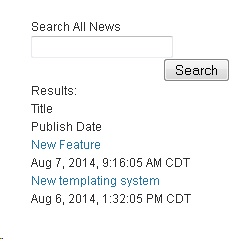
Of course you will want to style the result for a nice display.