How to build the Android SDK for Volt IRIS app?

Thanks for always replying @Gunndarr Dotter :)

No matter what I choose (apk/aab), the error logs are always created and in this post, I am attaching all of the logs for your reference.

For the certificate signing thing, I will raise a support ticket but for the other thing, I will wait for your response. It would be great if that could be solved without raising a ticket.

aab release mode errorLogs.txtaab test mode errorLogs.txtapk debug mode errorLogs.txt

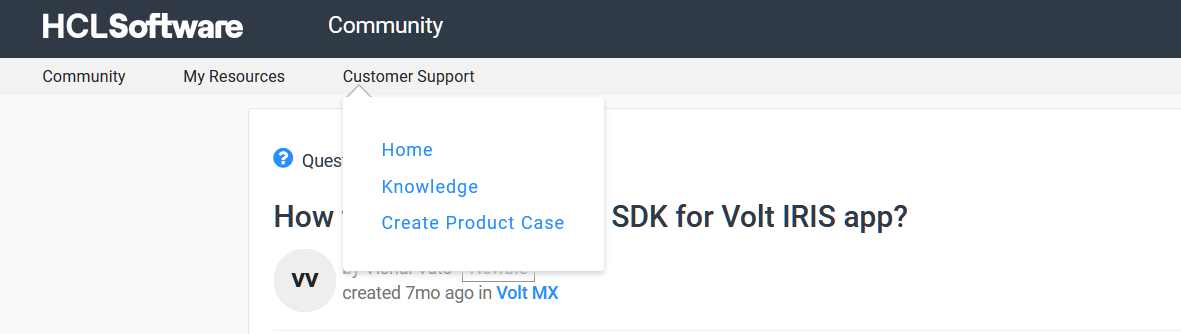
@Gunndarr Dotter, I tried to log a support ticket to get my queries resolved, but it seems like finding the correct way of doing it is a bit too hard. As you said, I clicked on the Customer Support link in the navbar and in there I chose Home and then I was directed to https://support.hcl-software.com/csm?id=csm_index

On that page, I am unable to find any link through which I can register my support request. So, in order to solve this issue via Support Chat, I clicked on the Chat icon on the support page and then an agent shared an article which has the steps of creating a support case. That article can be found here: https://support.hcl-software.com/csm?id=kb_article&sysparm_article=KB0010164

According to that page, there has to be a New Cases option to get started. But I am unable to spot that, can you help me in finding the same?

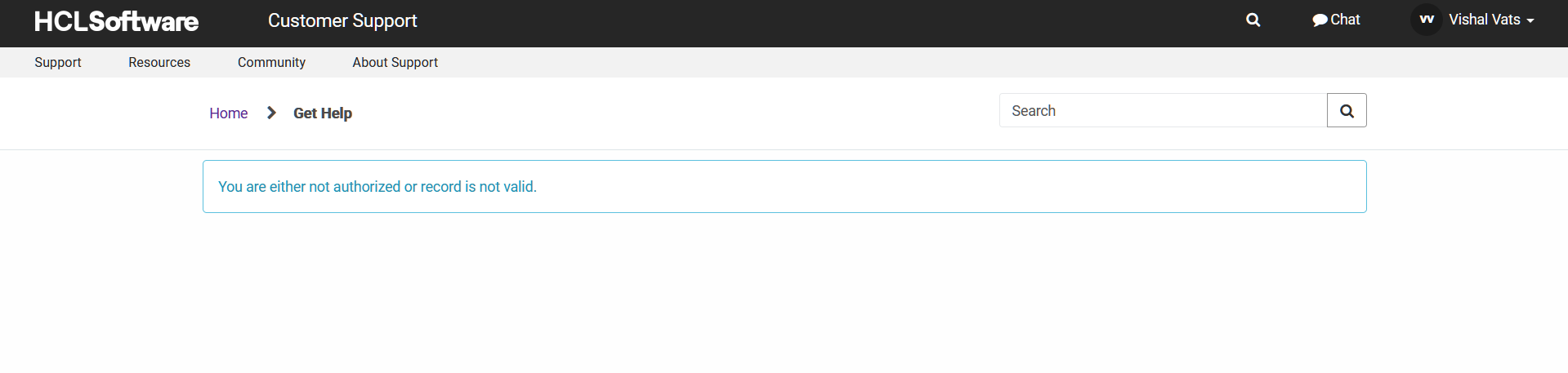
Apart from that, in the Customer Support option in the navbar, I found the Create Product Case option and post-clicking I saw this restricted-access message. What to do now?

The link for the Product Case page is: https://support.hcl-software.com/csm?id=csm_get_help&sys_id=5d63dc0fdb0c60140104c59b139619c2

On the support page (https://support.hcl-software.com/csm?id=csm_index), apart from these things, I found the HCL Guest Case form and you can find the same at: https://support.hcl-software.com/csm?id=guest_csm_creation But again, I cannot find any relevant category for my case in this form and I guess that this is not the right form for my use case! Can you help me out

Hello Vishal. It looks like you only have a community account in this system. You must be a registered customer with valid entitlements to receive support for any of our products. Community support is on a best effort basis only.

Then how am I supposed to get the anomaly corrected?

You should register as a customer on our HCLSoftware portals: https://support.hcl-software.com/csm?id=kb_article&sysparm_article=KB0069114

Also, on the guest case in the Category field, just scroll a little bit down and then you can select Product concerns.

I have raised the ticket through the Guest case page and even got the case number. So, I hope that my query will be resolved at the earliest. By the way, I don't think that I will be able to make a customer profile on the HCL software portal because it automatically uses my Volt MX-linked email to sign me inside the website!

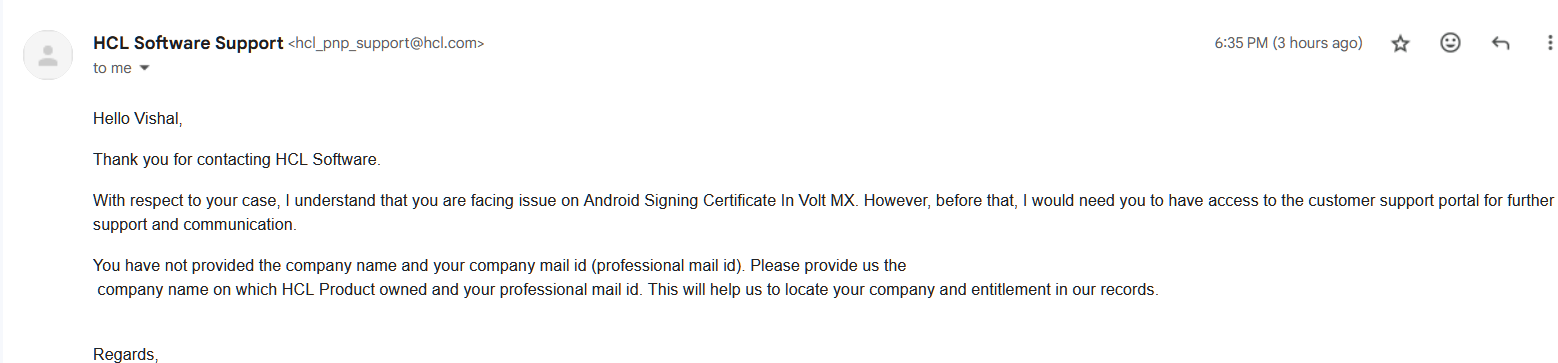
I got the reply to my support request. They are asking for my company name and email. How can I provide them the same as I am a college student who is using Volt MX for personal projects!! Here is the screenshot of their response:

So, @Gunndarr Dotter @Analyn Policarpio it seems that support for normal users like me is very difficult (almost impossible at the moment), because we can only access Forum and can't utilize the other mediums for support!

@Gunndarr Dotter I finally published my Volt MX application to the Google Play Store. For sure, it has been a roller-coaster ride for me. From having many roadblocks in generating the aab file for the application in Volt MX to fulfilling the requirements in the Play Store, I covered a lot and learnt too!

Thanks for helping me out! By the way, the link to my application is: Wishy - Google Play

To finally mark this question as answered, I am finally providing the steps that might help others to get their AAB/APK for their applications (this is for Android applications only):

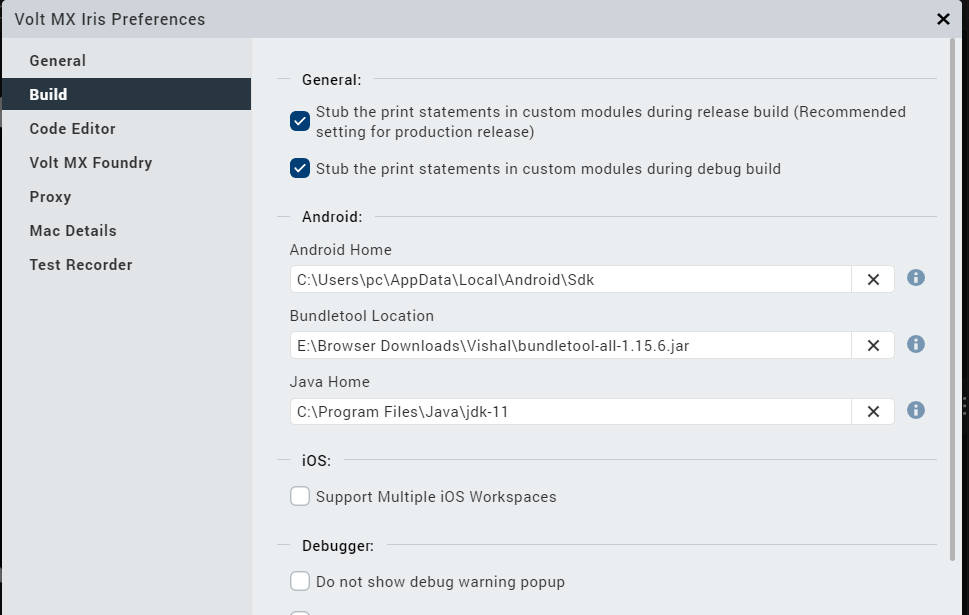
To build the apk/aab, you need to have Android Studio, JDK (v11) and Bundletool installed on your local machine.

Step1 (Installing Android Studio): You can download the same from: https://developer.android.com/studio

Step 2 (Installing JDK v11): Java and JDK are two different things and you must have JDK v11 installed on your local machine because as of now this is the version that is supported by Volt MX.

Download link: https://www.oracle.com/in/java/technologies/javase/jdk11-archive-downloads.html

Note: You would have to create an account on the Oracle website to download the archived versions.

Step 3 (Installing Bundletool): Download the bundletool.jar file via this page: https://github.com/google/bundletool/releases

Then you have to provide the destinations for each three of them in the Preferences so that the aab/apk files can be built and saved on your local machine.

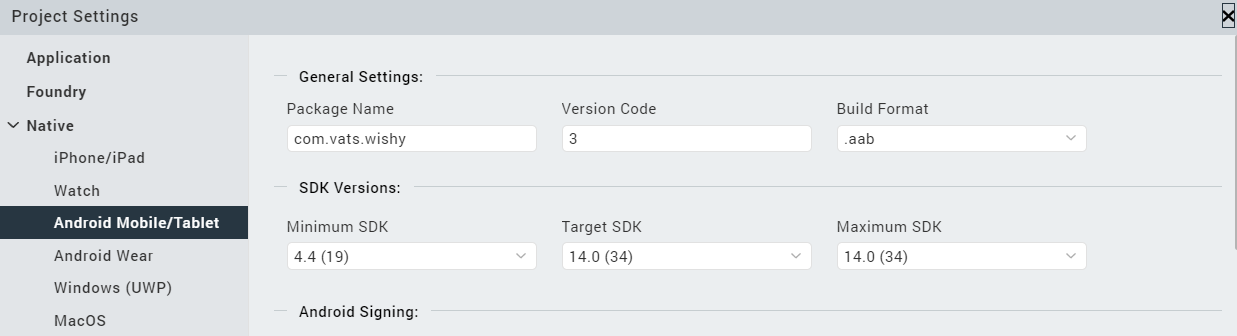
Step 4 (Choose what to build): Click on the Project Settings (⚙️) and move to the Android Mobile inside the Native settings. In there, you have to choose the Build Format (aab/apk) file. Based on your selection here, your output file will be provided.

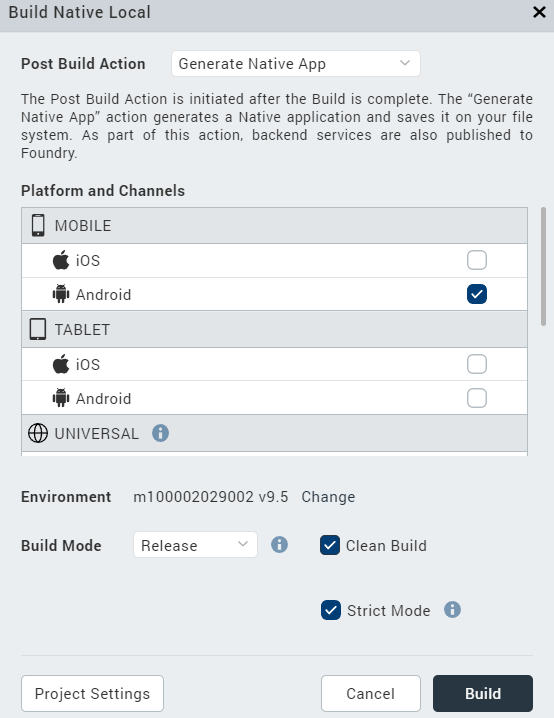
Step 5 (Build the final thing): Click on the Build section in the navbar and then Build Native Local (Ctrl+N). Below is the snippet for the same:

After following the above instructions, you will be able to build the aab/apk file successfully :) I hope this helps you in any manner.
@Analyn Policarpio you can mark the above post as the solution for this question 👍

Hi, @Gunndarr Dotter As you already know I have published the initial version of the app on Google Play Store. Yesterday I changed the app a bit and wished to get the abb file for the new version. But that build process is being failed. I don't know why! I am providing the logs for the same, can you please have a look at those. These are the lines that are printed in the console (no logs files were made in the irisdata folder)

test.txt

@Analyn Policarpio @Gunndarr Dotter any help?

I got the workaround. As I copied the old project for one of my new projects and the build process was throwing an error because of the certficate. So, I deleted the keystore file/certificate in the project directory and made a new one. That solved the issue 😃