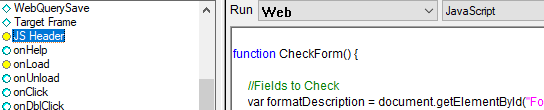
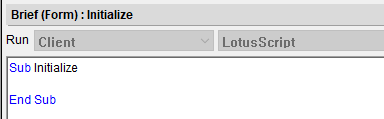
How do you change in Designer LotusScript editor preference such as background color from white to other color
If you're seeking for dark mode please vote existing ideas: HCL Domino Ideas Portal
Thank for the suggestion. I tried that didn't work and confirmed with HCL support there are no control with the customizing the Editor for LS and some other places. I voted for idea request for 'Dark mode' and etc in the Editor's preference. Can't believe nothing was done about it by HCL for so long.
I spent some time creating a dark theme for Domino Designer with the same palette used by VSCode.
Take a look at the repo domino-designer-dark-theme on GitHub.
Hello,
Thanks for this tip! Half way in solution suggested by you and it work! Can't understand why if you able to do this when HCL is dragging on for the resolution to make this happen everywhere! Love to see this in other places involving LS/Java/JavaScript/etc... Your tip work for Code/Library for LS, Java and Agent. Thanks again!
@Charles C. Lape
To change the background color in the LotusScript editor within IBM Domino Designer, follow these steps:
-
Open IBM Domino Designer.
-
Go to the menu bar and click on:
File → Preferences -
In the Preferences window, navigate to:
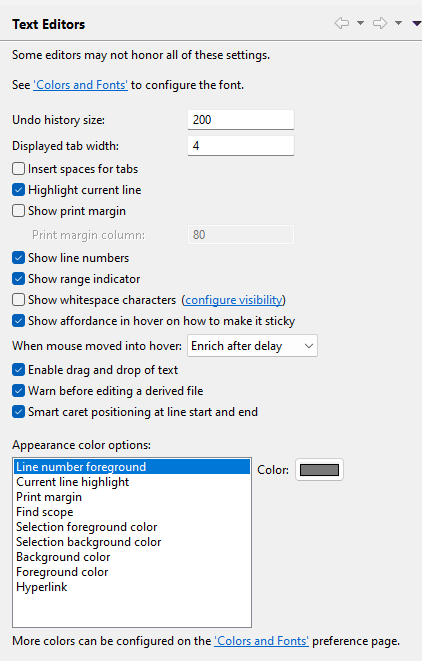
General → Editors → Text Editors -
On the right side, you’ll see settings for colors and fonts, including "Background color".
-
Click the color box next to "Background color" and choose your preferred color.
-
Click Apply and then OK to save your changes.
This will change the background color of the script editor (including LotusScript, Java, etc.) across the Designer.
Hope this helps!!