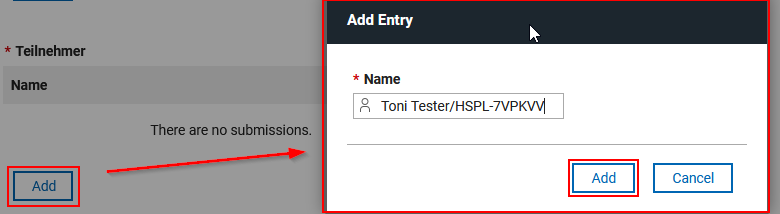
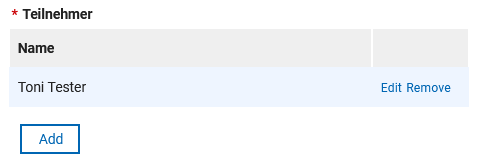
For a user selection in a survey, I have used a table "TableParticipants" to collect the names (which is imho the only way to get/store multiple values resp. something like an array - please correct if I'm wrong).
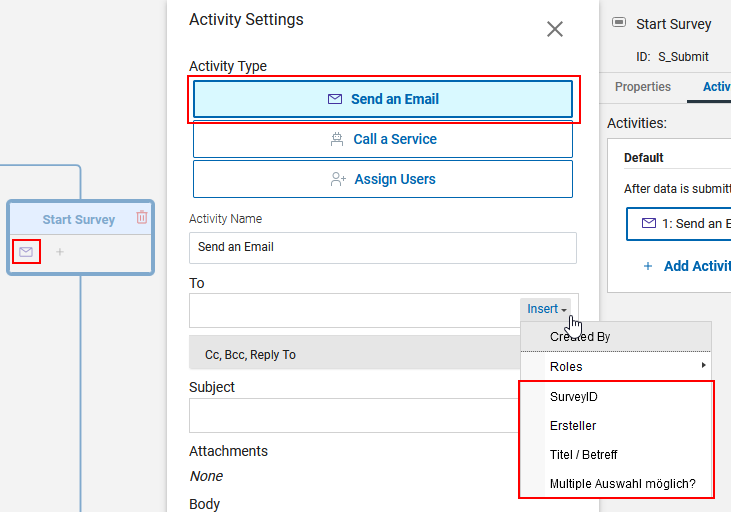
But now, when I would like to notify these users about the start of a survey, I can not select the table in the "Send an email" workflow activity; seems that the "Insert" function there only lists "Single Line Entry" fields...
Any recommendations how I can make that happen?
Just stumbled upon a sentence in a HCL presentation which might explain (or at least hint to) why a table might not be available in a workflow activity: Table fields cannot be used as inputs to services.
(If I'm not mistaken, the "Send Email" activity is a service as well.)
I found this in the "Training_Tables.pdf" on page 3, available via this link: HCL Domino Volt - Using Tables
But the question remains - I can concatenate the recipients from the table in a "Single Line Entry" field, but it's length is limited to 255 characters, so this is quite error-prone (10 users/mail addresses will already exceed the char limit, preventing submission of the form).
A "Multi-Line Entry" field does not have this limitation, but it is - also - NOT selectable in the workflow activity.
I managed to work around this limitation:
- first, I concatenate the entered/selected people into a "Multi-Line Entry" field
- then, I split the values via JavaScript into 10 Single Line Entry fields I put on the form in a hidden section
- finally, I select all these 10 fields in the recipients field on the mailing activity
I found a clean way to do this without any extra fields or JavaScript.
-
Create a open Role, so you can asign users during the workflow
-
on the Workflow step you want to send the email, add a “Assign Users” activity before data submission, which calls a service
-
select the service “[appName] / [formName] / [tableName] / Search”
-
in the input define which table entries should be selected
-
in the output you can asign a field (Name) of all selected tablerows to the open group
-
In the “Send an Email” activity: select the open Role as the recipient
This has the added advantage of being able to set permissions for all the people in the table. Allowing them to see or edit the document in later stages of the worklow.
Hope this helps.
Tested in Domino Leap 1.1.8 and Domino Leap 1.1.10