Hi!
I would like to setup HCL Digital Asset Management and HCL Digital content compose docker image in my dev environment with docker-compose.
Where can I find a guide?
Hi!
I would like to setup HCL Digital Asset Management and HCL Digital content compose docker image in my dev environment with docker-compose.
Where can I find a guide?
Dear ASAITHAMBI MADHAIYAN,
Please find the below link from GIT where you can see steps for the same.
https://github.com/HCL-TECH-SOFTWARE/dx-docker-compose
Let me know incase of any concern. Thanks.
Regards,
Saif
Hi ASAITHAMBI MADHAIYAN,
docker-compose is using a proxy to render all URLs correctly. That means, please access your portal running on docker with the following URL:
http://localhost/wps/portal
instead of using:
https://localhost:10041/wps/portal
or:
http://localhost:10039/wps/portal
Please also notice that by default docker-compose is not supporting https!
Furthermore it is important that you run the installApps.sh or installApps.bat file to make sure that the Content Composer & DAM is configured correctly. That should happen as soon as you have run the "docker-compose up" command and when you see that all pods are up. With that you should be able to access both (Content Composer and DAM)
Thanks, Thorsten
Please try the following:
1. Try logging into portal using fully qualified host name in a PRIVATE browser window, before accessing DAM or CC.
2. Run "helm upgrade" with same arguments as the helm install after populating the dam and cc configMaps with the correct load balancer ip address. To edit the configMaps:
kubectl -n yournamespace get ConfigMap
kubectl -n yournamespace edit (ConfigMap name) > add ip address > close the editor
3. Administration > Manage Pages > Search on "Title Contains" search the string "digital" > click the icon to "Edit page layout" next to "Digital Assets" page > click the drop-down next to the portlet > Edit Shared Setting > change the ip address to the correct/current loadbalancer ip address for the portal > Save (in my case the window did not close automatically, had to close manually) > Click "Done" on the Edit Page Layout > Logout/login and test DAM Page.
Repeat similar steps for Content Composer page.
4. Run enable-media-library configengine task, passing the hostname/domain used to access the Portal Server
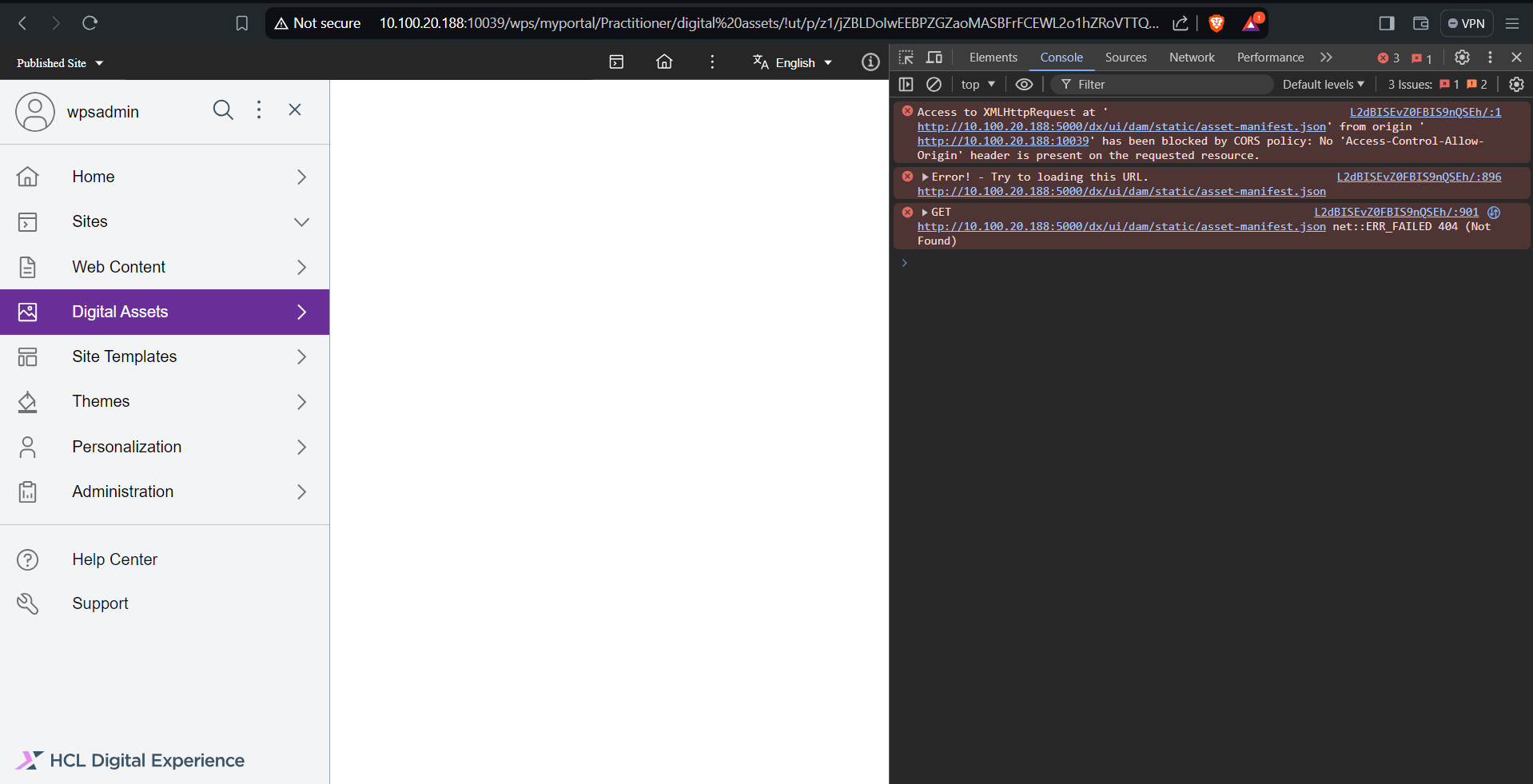
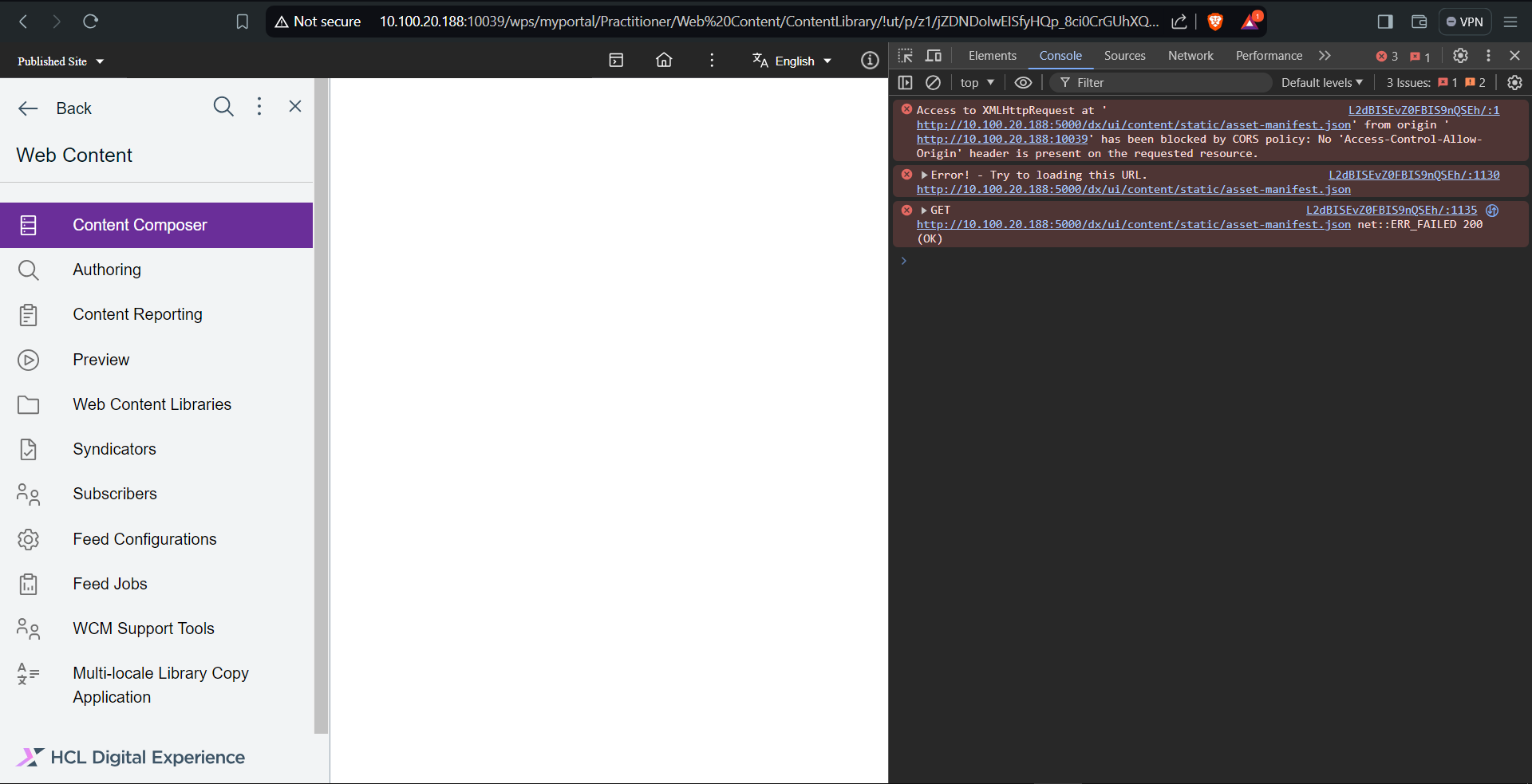
5. Open browser developer tools and check if any cors issues are reported in network tab or console
If this doesn't help to resolve the issue, please open a case with HCL support. Thanks!
Hi Thorsten Reinheimer and George Fairbairn,
Thank you for all your responses.
I changed the port in dx.yaml from 80 to 81, and I'm facing this issue in my case.
It was working fine when using the default port 80.
Thanks
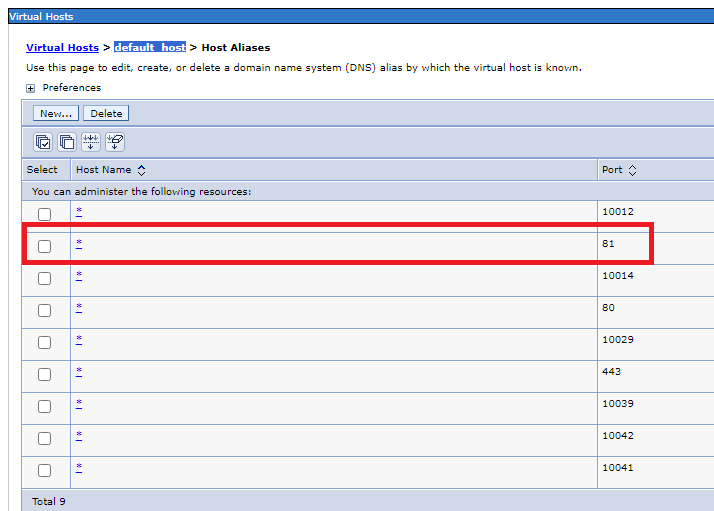
When you want to change the port to 81, then you need additional modifications in your VirtualHost settings of the default_host on your Application server. Furthermore you also need to modify the installApps.sh or InstallApps.bat file to point to the new port 81 as well. For example:
docker exec dx-core sh -c "/opt/HCL/wp_profile/ConfigEngine/./ConfigEngine.sh enable-headless-content -DWasPassword=wpsadmin -DPortalAdminPwd=wpsadmin -Dstatic.ui.url=http://%DX_HOSTNAME%:81/dx/ui/content/static"
docker exec dx-core sh -c "/opt/HCL/wp_profile/ConfigEngine/./ConfigEngine.sh enable-media-library -DWasPassword=wpsadmin -DPortalAdminPwd=wpsadmin -DdigitalAssets.baseUrl=http://%DX_HOSTNAME%:81 -DdigitalAssets.uiSuffix=/::/home/media?hcldam=true -Dexperience.api.url=http://%DX_HOSTNAME%:81/dx/api/core/v1 -Dstatic.ui.url=http://%DX_HOSTNAME%:81/dx/ui/dam/static"
and in your dx.yaml file, make sure that the port 81 is really unique. By default the prereqs-checker is already using that port. I just tested the new config and it also works fine for me, when I run on port 81.
Thanks, Thorsten