While working on a Domino server environment with multiple applications and agents, I encountered a challenge that many Domino administrators may face. In this post, I’ll walk you through the problem, the investigation process, and how I developed a solution using LotusScript to streamline the agents across hundreds of databases.
The Problem
In an environment, several Domino-based applications were running on a Domino server, each containing multiple scheduled agents. These agents were originally signed with a specific user ID, which granted them the necessary permissions to execute on the server.
However, the user associated with this ID left the organization, and the ID was subsequently deleted. I re-signed the databases with a new user ID that also had execution rights. While most agents were updated successfully, many remained unsigned by the new ID and failed to run as expected.
Root Cause Analysis
Upon investigation, I discovered that these agents had the “Prohibit design refresh or replace to modify” setting enabled. This setting prevented the agents from being re-signed with the new ID.

Disabling this setting manually for each agent across hundreds of databases was not practical. I needed a scalable solution to:
- Identify all agents across all application databases where this setting was enabled.
- Disable this setting programmatically so the agents could be properly signed with the new user ID.
Key Insight: The $Flags Field
While exploring the agent design documents, I observed that this setting is stored in the $Flags field as the character “P”. When enabled, the character “P” is present, and when disabled, it is removed.
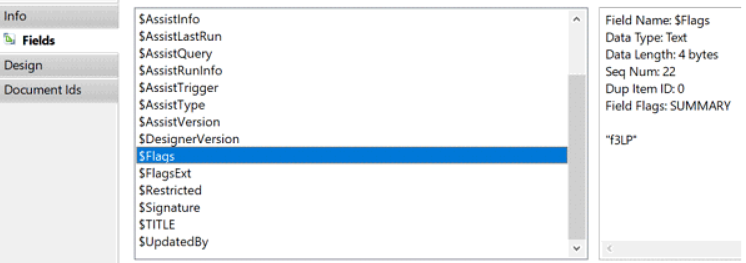
This gave me the idea to scan all agents across all application databases and programmatically remove the character “P” from the $Flags field where present.
The Solution: LotusScript Automation
I developed a LotusScript agent that performs the following steps:
- Uses the NotesDbDirectory class to iterate through all databases.
- For each database, retrieves agent design document using the NotesNoteCollection class.
- Checks each agent’s $Flags field for the presence of the character “P” using the InStr function.
- If found, removes the character “P” by splitting the string using StrLeftBack and StrRightBack, and then recombining the values without the character “P”.
- Saves the updated design document.
Folder Filtering
To avoid unnecessary scanning of mail and system databases, the script is configured to scan only specific folders that contain application databases. You can define the number of folders and their names in the script. These folders would reside under the Domino\Data directory.
For example, if your application databases are in folders apps1, apps2, and apps3, you would set:
- Folder count = 2 in the array declaration (for 3 folders, index starts from 0)
Folder names list:
- foldernames(0) = “apps1”
- foldernames(1) = “apps2”
- foldernames(2) = “apps3”
Agent Permissions
The agent executing this script must have access to all the application databases being scanned. The most reliable approach is to sign the agent with the server ID, as it typically has full access across the server.
Make sure to update the following line in the script with your actual server name:
Set dbdir = New NotesDbDirectory(“ServerName”)
You can modify this script using Domino Designer. Set the Target of the agent to “None”.
Here is the sample LotusScript code:
Sub Initialize
On Error GoTo EH
Dim sess As New NotesSession
Dim db As NotesDatabase
Dim coll As NotesNoteCollection
Dim noteid As String
Dim doc As NotesDocument
Dim leftStr As String
Dim rightStr As String
Dim dbdir As New NotesDbDirectory("ServerName")  'mention your server name here
Dim folderfound As Boolean

'Set the count as (Number of folders to be scanned - 1).
'The folder contains databases that should be scanned.
'For e.g. if there are 3 folders to be scanned then set count as 3 - 1 = 2.
'In this example we are scanning 3 folders, so count is set to 2 -> foldernames(2).
Dim foldernames(2) As String

'Mention the folder names which contains databases that should be scanned.
'These folders are inside Domino\Data folder.
'In this example we are scanning 3 folders named "apps1", "apps2" and "apps3".
'Inside the round bracket after foldernames increase the count in each subsequent line.
'You can add as many foldernames as you wish, and you would need to adjust the count accordingly.
foldernames(0) = "apps1"
foldernames(1) = "apps2"
foldernames(2) = "apps3"

Set db = dbdir.GetFirstDatabase(DATABASE)
While Not(db Is Nothing)
folderfound = False
ForAll x In foldernames
If InStr(db.Filepath,x) <> 0 Then
folderfound = True
Exit ForAll
End If
End ForAll

If folderfound Then
Call db.Open("", "")
Set coll = db.createNoteCollection( False )
coll.selectAgents = True
coll.buildCollection
noteid = coll.getFirstNoteId()

Do While noteid <> ""
Set doc = db.getDocumentById(noteid)
If InStr(doc.Getitemvalue("$Flags")(0),"P") <> 0 Then
leftStr = StrLeftBack(doc.Getitemvalue("$Flags")(0),"P")
rightStr = StrRightBack(doc.Getitemvalue("$Flags")(0),"P")
Call doc.Replaceitemvalue("$Flags", leftStr + rightStr)
Call doc.Save(True, False)
End If
noteid = coll.getNextNoteId(noteid)
Loop
End If

Set db = dbdir.GetNextDatabase
Wend

Exit Sub
EH:
MsgBox "Error - " & Error() & " at line - " & Erl
Resume Next
End Sub
By automating this process, I was able to efficiently remove the restrictive setting from all affected agents and ensure they were re-signed correctly. This significantly reduced manual intervention and ensured consistent agent behavior across all Domino applications. If you face a similar issue, I hope this approach proves helpful in managing agent configurations at scale.
Disclaimer
This solution has been tested in a controlled environment and is shared as a reference implementation. It is recommended to adapt and thoroughly test the code in your test environment before deploying it in production. Please work closely with your development and QA teams to ensure it meets your organizational standards. This approach is not supported by HCL Product Support. Use it at your own discretion.