I have a client's ID file, it is not is the vault. How do I put it in the vault?
If this user have Vault settings in his security policy, you need only to access Domino server with this user.id - Notes client will automatically upload id to Vault.
You can't put it do Vault manually
Hi Lesley,
Please refer to the information provided in below URL regarding your query -->
https://help.hcltechsw.com/domino/10.0.1/conf_assigninguserstoavault_t.html
Regards,
Amit Sharma
I understood that already. thanks for the link. : )
I strongly guess that you are aware about the „how“ normally, but this single client does not upload its ID in the Vault despite having the the right policies assigned and applied.
If I am wrong, then follow the advices from the other two posts.
Troubleshooting ID Vault is quite easy most of the times: If all policies are ok (crosscheck in hidden ($Policies) view in names.nsf of client), then you find the reason for the non working upload in the Security Events view in log.nsf of client or vault server.
Possible reasons are:
- Password in ID Vault and local ID don‘t match
- ID in Vault is in „inactive“ view: if user had existed previously and had been deleted with option „keep ID in vault“
- client cannot find path to vault server (if the home- mail server does not have a replica of the vault)
In case of an ID that is already in the vault (inactive or active) and prevents upload of the clients‘ ID: just remove it from the vault on the server, rebuild all views in vault (Shift + Ctrl + F9), reset cache (dbcache flush on console) and then restart the client. It should then upload the id.
In case of missing replica: add mail home server of users to the vault servers OR create a connection document to one vault server in the users‘ names.nsf
Hi Lesley,
Please refer to the information provided in below Article regarding your query -->
https://support.hcltechsw.com/csm?id=kb_article&sysparm_article=KB0039131
Regards,
Sudhir Kudale
Hi @Lesley Phillips
Assuming that you wanted to upload the client's ID directly from the Notes Client or webmail, please do the following:
For Notes Client:
1. Launch the Notes Client.
2. Go to File > Security > User Security.
3. Enter the Notes ID password.
4. Click ID Vault Sync.
5. Check log.nsf to confirm if successful or not.
For Verse Web:
1. Login your account to your Verse Web.
2. Click your Name in the upper-right corner then choose Mail and Calendar Settings.
3. Go to the Security Section.
4. Click Sync with Vault button.
For iNotes:
1. Login your account to iNotes.
2. Click your Name in the upper-right corner then choose Preferences.
3. Go to the Security Section.
4. Click Sync with Vault button.
5. Click Ok.
6. Enter the Notes ID password then click Ok.
Let us know if this works for you. Thanks!
Hello Lesley,
When the security is policy is in place with Vault configuration and it is being applied to the user/users. Then the ID file will be uploaded to the vault database as follows.
- When a user changes the ID file on a Notes client or switches IDs, then the client immediately tries to synchronize with a server. If the user enters a new password after a password reset, the client also immediately tries to synchronize.
Otherwise, synchronization occurs as follows:
- The Notes client checks for changes periodically, generally every 8 hours. The client conducts its first check at a random time during the first 8 hours from when the client starts up. The client conducts the checks at random times for load balancing. Checking at random times prevents a heavy demand on vault servers during the morning, when many Notes clients are started as people begin work.
- If an attempt to check for changes or to synchronize fails, then the Notes client makes up to three additional attempts at 5-minute intervals. For example, if the client cannot connect to a server, it attempts to connect to the server up to three more times. If the client is not successful, it resumes checking during the next 8-hour interval.
- Sometimes Notes clients are started and stopped frequently. To ensure that clients regularly check the ID vault for changes, the client checks for changes approximately 5 minutes after startup. If the Notes client started and stopped three times, and if more than 24 hours passed since the client last checked for changes, the client checks for changes when it starts.
There are method using Lotus Script APIs and C-API to uploads the ID file into the Vault database which you may explore it.
Lotus Scrip reference: NotesIDVault (LotusScript)
https://help.hcl-software.com/dom_designer/10.0.1/basic/H_NOTESIDVAULT_CLASS.html
Below are the CPI method reference. You can download the CApi tool kit from FlexNet site.
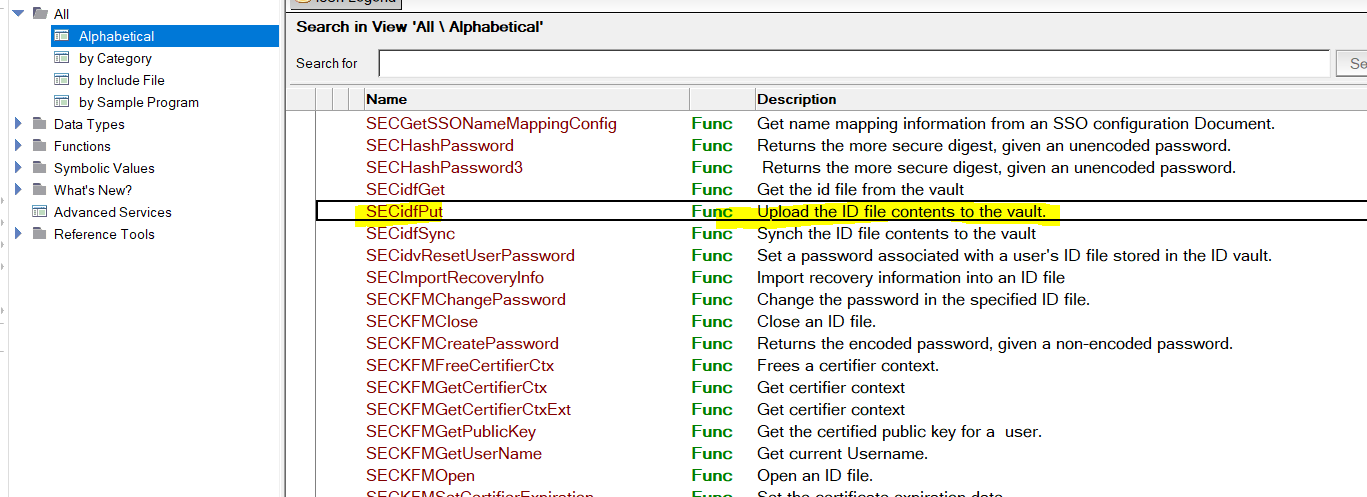
Below is an example of the script using CApi calls which can be used in a button.
Sub Click(Source As Button)
On Error Goto err1
Dim ws As New NotesUIWorkspace
Dim Servername As String
Dim hKFC As Long
Dim session As New NotesSession
Dim user As String
Dim path As String
path = session.GetEnvironmentString("KeyFileName",True)
user = session.UserName
Servername = "MyServer/Acme"
IDfilename = path
pwd:
Password = ws.Prompt(PROMPT_PASSWORD, "ID-Management - Password prompt", "Please enter the Notes ID password.","")
ret = SECKFMOpen(hKFC, IDfilename, Password, SECKFM_open_All, 0, 0)
If ret <> 0 Then Error 1212, "Error encountered - Please retry"
ret = SECidfPut(user,Password,IDFilename,0,Cstr(Servername),0,0,0)
If ret <> 0 Then Error 1212, "Error encountered - Please retry"
' Close the database to free its resources
ret = NSFDbClose(hdb)
ret = SECKFMClose(hKFC,SECKFM_close_WriteIdFile,0,0)
If ret <> 0 Then Error 1212, "Error encountered - Please retry"
Msgbox "ID Upload successful"
Exit Sub
err1:
Print Error & "-" & Erl
Goto pwd
End Sub
Note, this is a one way approach. You may test this before it is being used for any live user. You may also achieve this using Lotus script Api too.
Thank you.
Regards
Shrikant J
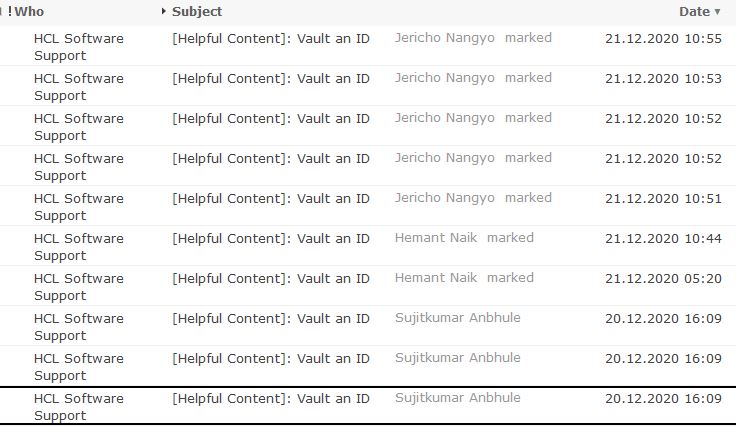

Never realized that the "Helpful" - marks where mostly given from HCL to HCL... was just wondering, why single link answers where rated more helpful than answers that directly contained the solution and did not require to go to another website...
I am often answering questions on Stackexchange- sites. And there "link only" answered are always downvoted as hell...