We're in the testing stage of HCL Notes 11 for our company, and we've noticed that when you click on an email to select it, the highlight color is a light gray. Is there a way to change this to something darker, so they can be seen easier on a white background? We would like to stay on the Notes 11 Theme, and we could not see this as an option in File > Preferences... > Fonts, Colors, and Themes > Customize Themes area. Would this be something that can only be adjusted via policy, or can users change this to whatever they desire?
My apologies for something so small. I know when we deploy this out to the rest of the company, people will be asking us about this.
Thank you!
Hi Cynthia,
We understood that you want to stay on Notes 11 theme and your primary requirement is to highlight the mail to something darker in white background.
Instead of Customize themes area, cannot you consider the color change for read/unread mail as attached screenshot.
Will that not solved your primary purpose of mail getting highlighted.
That solution is all and well for determining what's been read or unread, but not for determining what is highlighted. When users want to select multiple emails, it's difficult to determine which ones are highlighted vs what is not. Light gray on a white background is not easy to see.
I can see change in color of highlighted mail to dark blue with Notes 9 theme or Operating System theme.
It doesnot looks like to be possible with Notes 11 theme and seems to be product specification to me.
However, lets see if someone can shed more light on to this.
Hy @Cynthia Tyree
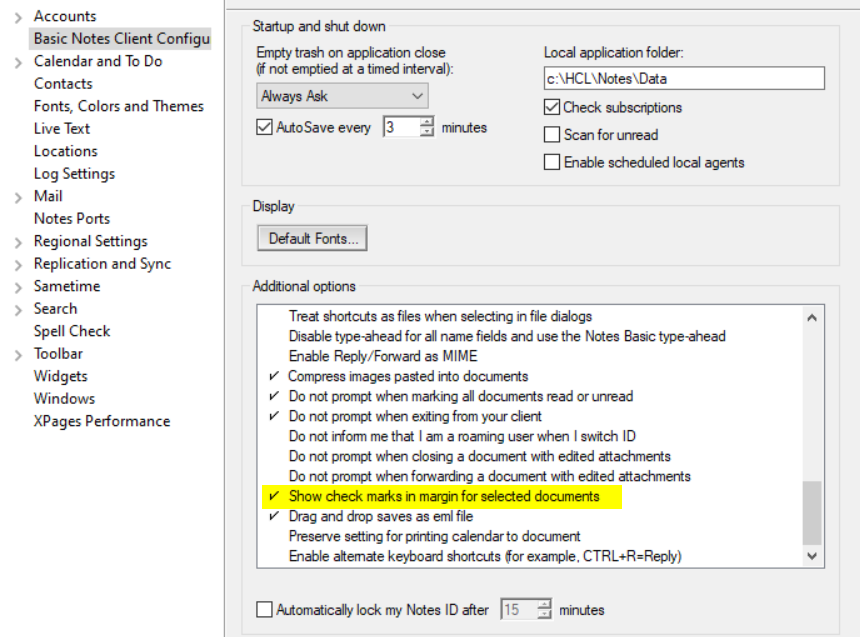
If you want to know which emails are selected or not, you can enable the option "Show check marks in margin for selected documents" under "Basic Notes Client Configuration":
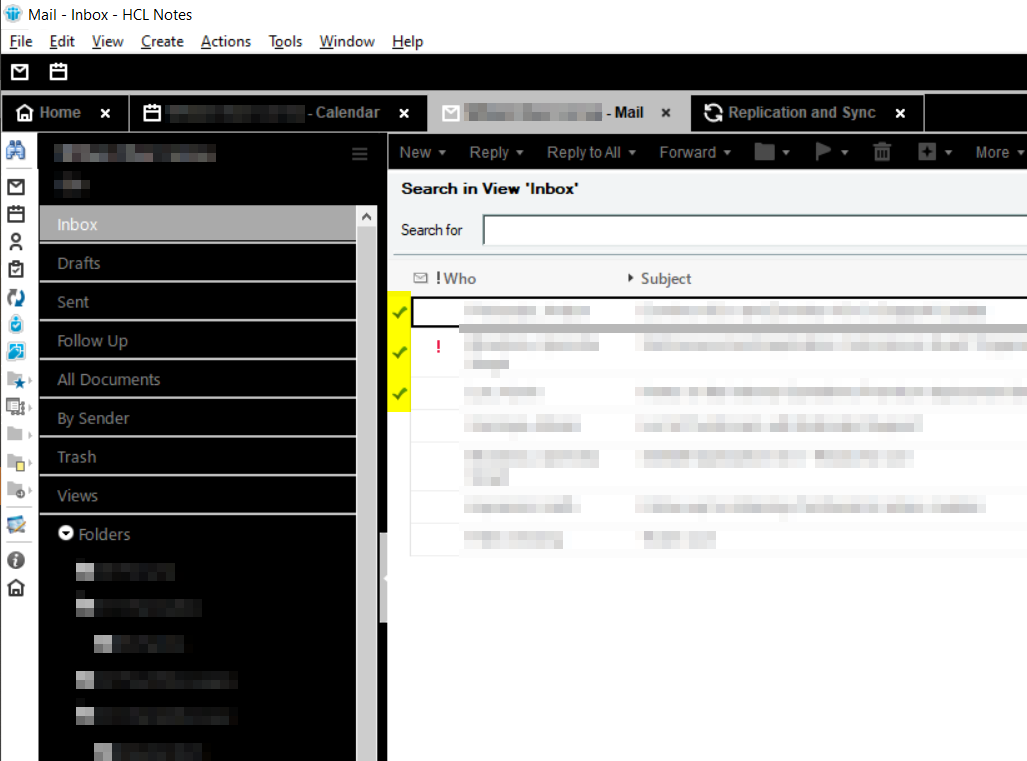
By doing this, you will see checkmarks on the selected documents.... Take a look at my Notes Client v11:
I hope that this can help you in some way.
Best Regards
Wiliam Dias
Thank you @Wiliam Dias!
This may be the best route. We were not sure if there was a way to change the highlighted field, but the check marks would act as a compromise for now. Hopefully, they'll add a way to customize the highlighted field in the future. : )
Hi
After migrating from 9 to 11 (and then 12), one of the reasons why users were reluctant to switch to "Notes 11 Theme" was that there was little differentiation between marked messages, which sometimes resulted in deleting/moving the wrong ones...
In "Notes 9 Theme" it was done perfectly.
Setting "Show check marks in margin for selected documents", was not the expected solution.
I found where the marking color is written:
In the file: \workspace\.metadata\.plugins\org.eclipse.core.runtime\.settings\com.ibm.rcp.ui.prefs
The color is defined in: (default is rgb(234,249,255))
mailtable>row>primarySelection{background-color\:rgb(234,249,255),rgb(234,249,255)
I changed to color rgb(190,226,243), immediately better :)
Note: changing the settings in "Preferences / Fonts, Colors and Themes" will overwrite our fixes.
This color should be configurable by the user, because the standard one contrasts too little with the background color.
Marek