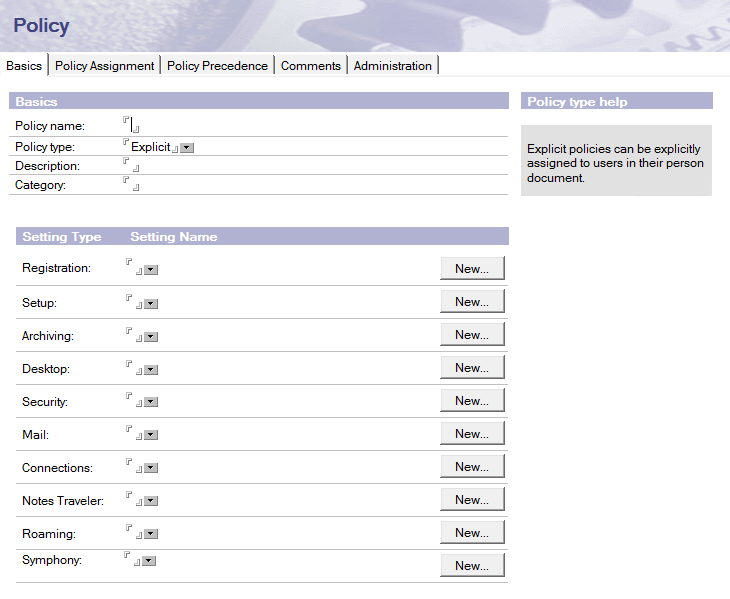
From your screen shot (Policy document), create a New desktop settings document. Then on the settings document, under Basics > Browser Options section you will see the following settings:
I missed the important information, our users are using Basic Mode instead of Standard, and the captioned method should be not able to apply to Basic Mode..
In that case, the policy settings dont get to be applied to Basic client. It only applies to Standard clients.
Other option can be is to add a field in your Policy document via Domino Designer. But thorough testing must be done before applying it to your production server.
Title: Is it possible to specify a non-default browser through a desktop policy? URL: https://support.hcltechsw.com/csm?id=kb_article&sysparm_article=KB0024735
1. Using the Notes or Administrator client, open the Domino Directory (NAMES.NSF) on the Domino server.
2. Click the People & Groups tab and open the Settings view.
3. Click Add Settings, open the Desktop Settings dialog and open the Custom Settings tab.
4. Click Locations.
5. Click Edit List to open a panel that enables you to add Location setting to user's desktops.
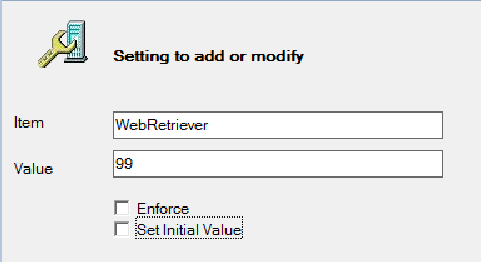
6. In the Item field, specify the setting
Item -- > WebRetriever
In the Value field, specify the value need to set
Value --> 99
Here 99 is alias value for others
Example --> Values 2 is alias value for Microsoft Internet Explorer 3 is alias value for Notes with Internet Explorer 9 is alias value for Firefox 10 is alias value for Safari 99 is alias value for others
13. Once the policy download to local contacts of Notes Client, Request you to verify the location Document -- Internet Browser of the user for the assigned policy.
Kindly Apply this policy for one test user and verify. Please test behavior thoroughly before applying to production.